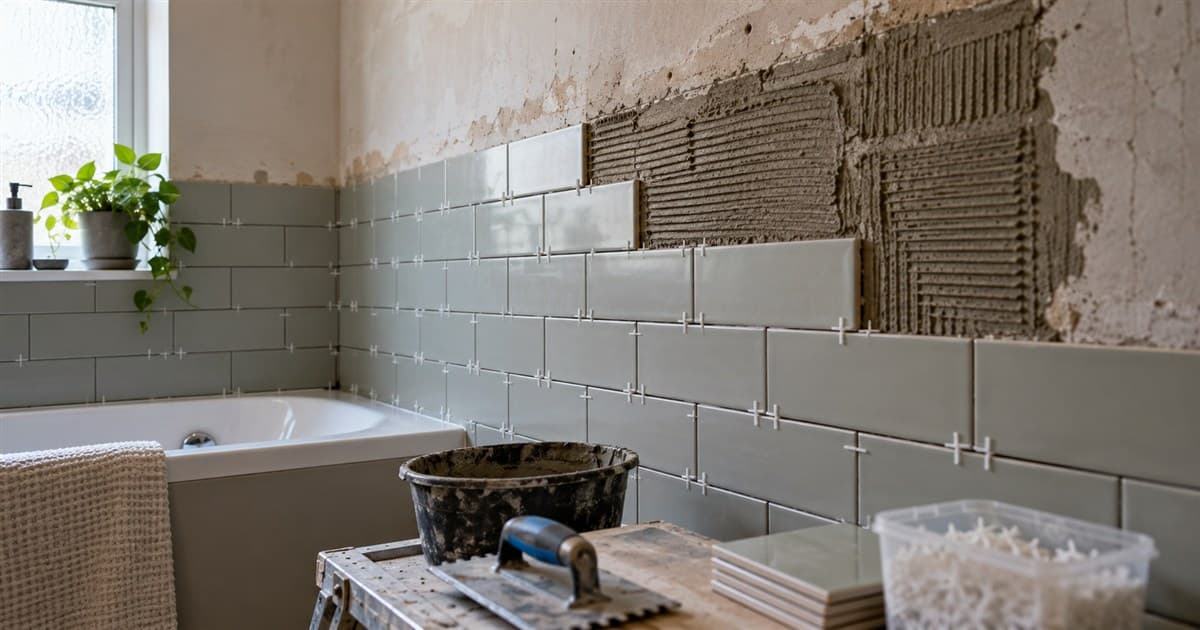
Why it helps the client
- They can see the job, not just read it. "Wall tiles to full height, walk-in shower, vanity unit" means far more as a picture.
- They decide faster. A client who can see the result is less likely to "think about it" for three weeks.
- They can say what they do not like before anything is bought - the wrong colour, a bath where they wanted a shower.
- Their partner can see it too. Often the person you met is not the only one deciding.
Why it helps you
- Your quote stands out. Most quotes next to yours will be a page of text and a total.
- You win on more than price. A client who can picture the finished room is comparing results, not just the bottom line.
- Better finishes are easier to sell. Show the room with large-format tiles or a better worktop, and the upgrade sells itself.
- Fewer surprises at the end. You agree on the look before you start, not after the tiles are on the wall.
Keep it honest
A picture shows how the room could look - it is not a promise. Real tiles, real light and the real shape of the room will differ a little. Say so on the quote, and write the actual finishes into the quote lines, so the price and the work are clear in words, not just in a picture.
The quote lines are what you agree to do. The picture helps the client choose; it does not replace the description of the work.
Send a quote the client can see, with a picture of the finished job and a price they can accept on their phone.
Try it freeNo card needed
How to do it in JobGuard
- On the quote, tick "Add the finished look" and take a photo of the room or the outside of the house as it is now, from where the client will usually see it.
- Choose the room type and say what the finished job is, for example "full bathroom refit, walk-in shower, grey tiles to full height".
- JobGuard makes three pictures from your photo, keeping the room the same shape.
- Not quite right? Ask for a change, such as "white tiles instead" or "no window blind".
- Tap "Show with the quote" under the one you like. The client sees it on their quote link and in the PDF, with a note that it is an illustration only.
Your site photo is only used to make the pictures; the client never sees it. Finished look pictures come with Pro (5 sets a month) and Team (15 a month), and you can also make them from the menu before a quote exists - handy while you are still talking it through with the client.
Getting a good picture
- Shoot in daylight, with the lights on, and stand back far enough to get most of the room in.
- Clear the clutter. Boxes and towels end up in the picture.
- Be specific: colours, materials, what stays and what goes.
- Keep it to what you will actually build. A picture of something you cannot fit only causes trouble later.